Server setup and configuration
On this page you build the Qbox test server and move your settings to it. Your live server and its database aren't touched.
You work with two copies of each file: the old one from your QBCore server, and the new one on the test server. Open your QBCore server folder (or its backup) and the test server folder in two VS Code windows, so you can copy between them.
Build a test server
The test server is a fresh Qbox install with its own, empty database. Your QBCore data comes later, in Database.
Pick the option that matches where your live server runs.
Option A: your live server runs on this PC
You run the test server next to the live one. It gets its own folder and its own ports, so the two don't get in each other's way.
-
Make a folder for the test server, for example
C:\FXServer-qbox. Inside it, make a folder calledserver. -
Download the server files. Open the FiveM server artifacts list and download the newest build from the list. Don't use the buttons at the top. Qbox needs build 10731 or newer.
-
Unpack the downloaded
server.7zintoC:\FXServer-qbox\serverwith 7-Zip. That folder now containsFXServer.exe. -
Make a start file. In VS Code, create a new file, paste the text below, and save it as
C:\FXServer-qbox\start-test-server.bat. Change the paths if you used a different folder.start-test-server.bat@echo offset TXHOST_DATA_PATH=C:\FXServer-qbox\txDataset TXHOST_TXA_PORT=40125set TXHOST_FXS_PORT=30125"C:\FXServer-qbox\server\FXServer.exe"pauseTXHOST_DATA_PATHgives the test server its own txAdmin settings and accounts.TXHOST_TXA_PORTputs its txAdmin on port40125instead of40120.TXHOST_FXS_PORTputs the game server on port30125instead of30120.
-
Double-click
start-test-server.bat. A black window opens. It shows a link,http://localhost:40125, and a PIN. Open the link in your browser and follow txAdmin's setup. -
Get a license key for the test server at portal.cfx.re, under server keys. Keys are free. Using a separate key keeps your live server's key and server list entry untouched.
-
Deploy Qbox. When txAdmin asks how to set up the server, choose Popular Recipes, then QBox Framework.
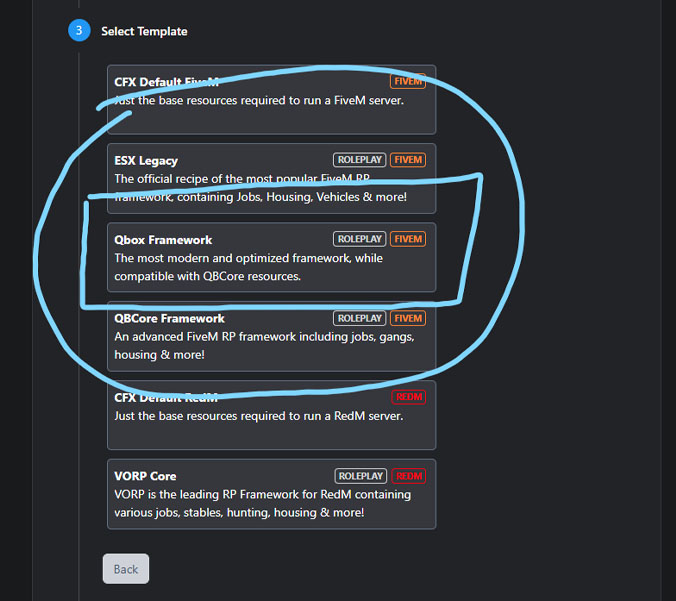
- Enter the license key from step 6.
- For the database, enter your MariaDB login. If you installed a new MariaDB for Qbox, use its password and port, see Install a new MariaDB. Keep the new database name txAdmin suggests: txAdmin creates a new database for the test server. Never point the test server at your live database.
-
Finish the deployment. txAdmin downloads everything and starts the server.
To join the test server, open FiveM, press F8 to open the console, type connect localhost:30125 and press Enter.
Option B: your live server is at a hosting company
Build the test server on your own Windows PC instead:
- Install MariaDB on your PC if you don't have it. See Installation.
- Follow the Installation guide to deploy the Qbox recipe. You can keep the normal ports.
- To join, open FiveM, press F8, type
connect localhost:30120and press Enter.
You also need your QBCore server's files on your PC: download the whole server folder with your host's file manager or FTP. That's also your backup.
Check the test server
Before you change anything, make sure a plain Qbox install works on your machine. With Option A, the test server's txAdmin is at http://localhost:40125; your live server's stays at http://localhost:40120.
- The server starts, and the Live Console shows no
SCRIPT ERROR. - You can join, create a character and spawn.
- You can walk around and open your inventory with Tab.
If this doesn't work, fix it first. Adding your own settings to a broken install only makes it harder to find the problem. Ask in the Qbox Discord if you're stuck.
Where the files are
The test server's files are in a folder txAdmin made for the recipe, inside its txData folder. Its name ends in .base. To find it, open txAdmin, go to Settings, then FXServer, and look at Server Data Folder.
In this guide, paths like qbx_core/shared/jobs.lua mean "inside the qbx_core folder". On the test server, Qbox resources are in resources/[qbx], ox resources in resources/[ox], and others in resources/[standalone]. To find any file quickly, open the server folder in VS Code and press Ctrl+P, then type the file name.
server.cfg
server.cfg is your server's main settings file. Don't copy your old server.cfg over the new one. Qbox needs the lines the recipe put in it. Instead, copy single lines from your old file into the new one.
Copy these lines from your old server.cfg, replacing the line with the same name in the new file if there is one:
sv_maxclients: your player slots.sv_enforceGameBuild: only if your old number is higher than the new file's. It decides which GTA DLC content is available, so you need it if you use newer DLC vehicles or clothing.steam_webApiKey, if you used one.- Lines that start with
setorsetrand belong to your own scripts. Their install instructions tell you which ones they need.
Don't copy these:
sv_licenseKey: the test server uses its own key.endpoint_add_tcpandendpoint_add_udp: the test server uses its own ports.mysql_connection_string: the test server keeps its own database for now. You change it in Database.ensureorstartlines for QBCore resources, likeensure qb-coreorensure [qb]. Qbox replaces them.- Lines that add staff to
qbcore.god,qbcore.adminorqbcore.mod. You move those in Permissions.
Your server's name, description, tags and banner are no longer set in server.cfg. Set them in the Cfx.re Portal when you go live.
Qbox has its own settings in server.cfg, all starting with qbx:, for example qbx:max_jobs_per_player for multiple jobs per character. The recipe already has sensible values. See convars for what each one does.
Permissions
QBCore gives staff the qbcore.god, qbcore.admin or qbcore.mod permission. Qbox uses three groups instead, defined in permissions.cfg next to server.cfg:
| Qbox group | Gets | Use it for |
|---|---|---|
group.admin | Everything | Owners and head admins. Replaces qbcore.god and qbcore.admin |
group.mod | Moderator and support permissions | Moderators. Replaces qbcore.mod |
group.support | Support permissions | Support staff |
Move your staff over:
-
In your old
server.cfgor permissions file, find the lines that add staff to QBCore groups. They look like this:add_principal identifier.fivem:1234567 qbcore.godadd_principal identifier.license:abc123def456 qbcore.mod -
Copy them to the bottom of the test server's
permissions.cfg, and change the last word to the Qbox group:permissions.cfgadd_principal identifier.fivem:1234567 group.adminadd_principal identifier.license:abc123def456 group.mod -
Restart the server.
Adding someone new: you need their identifier. Ask them to join the server once, then in txAdmin open Players, click their name and open the IDs tab. Use the fivem: identifier if they have one: it belongs to their Cfx.re account, so it stays the same on every PC.
The txAdmin account you used to deploy the recipe is already in group.admin. txAdmin added that line to server.cfg.
Commands that need "god". Some QBCore scripts make commands only the god level can use. On Qbox those need a group.god, which permissions.cfg doesn't have yet. Add it, and give it to your admins:
add_ace group.god god allow
add_principal group.god group.admin
add_principal identifier.fivem:1234567 group.god
Opting in. qbx_core's admin commands, such as /setjob and /givemoney, only work after an admin types /optin in the chat once. This stops admins from using admin commands by accident. To turn it off, open qbx_core/config/server.lua, find requireOptIn and set it to false.
Jobs and gangs
Jobs are in qbx_core/shared/jobs.lua and gangs in qbx_core/shared/gangs.lua. The format is almost the same as QBCore's, with three differences:
- Grade numbers are written without quotes.
['0']becomes[0]. With quotes, Qbox can't find the grade. - Boss grades need
bankAuth = trueto use the job's bank account. Renewed-Banking, the Qbox banking script, checks this instead ofisboss. - The file starts with
return {instead ofQBShared.Jobs = {.
The easiest way is to start from your QBCore file, because it already has your jobs, grades and pay.
Jobs, step by step:
-
Keep a copy of Qbox's original file. Copy
qbx_core/shared/jobs.luasomewhere outside the server folder. It has a few jobs QBCore doesn't, such asbcsoandsasp. Copy those back in later if you want them. -
Paste your jobs in. Open your QBCore
qb-core/shared/jobs.lua, press Ctrl+A and Ctrl+C. Open the test server'sqbx_core/shared/jobs.lua, press Ctrl+A and Ctrl+V. -
Fix the top of the file. It starts like this:
QBShared = QBShared or {}QBShared.ForceJobDefaultDutyAtLogin = true -- true: Force duty state to jobdefaultDuty | false: set duty state from database last savedQBShared.Jobs = {Delete the first two lines, and change
QBShared.Jobs = {toreturn {. If yourForceJobDefaultDutyAtLoginwasfalse, set the same line inqbx_core/shared/main.luatofalse. -
Remove the quotes from grade numbers. Press Ctrl+H. Turn on regular expressions with Alt+R (the
.*button lights up). In the first box type\['(\d+)'\], in the second box type[$1], and click Replace All (or press Ctrl+Alt+Enter). -
Give boss grades bank access. Turn regular expressions off again with Alt+R. In the first box type
isboss = true, in the secondisboss = true, bankAuth = true, and click Replace All. -
Save with Ctrl+S.
The result looks like this:
return {
    police = {
        label = 'Law Enforcement',
        type = 'leo',
        defaultDuty = true,
        offDutyPay = false,
        grades = {
            [0] = { name = 'Recruit', payment = 50 },
            [4] = { name = 'Chief', isboss = true, bankAuth = true, payment = 150 },
        },
    },
}
Gangs: do the same with qb-core/shared/gangs.lua and qbx_core/shared/gangs.lua. At the top, delete QBShared = QBShared or {} and change QBShared.Gangs = { to return {.
Rules to keep:
- Don't renumber grades. Characters remember the grade number they have. If you delete or renumber a grade, those characters lose it.
- Job and gang names must be lower case.
- Keep the
unemployedjob and thenonegang. Characters can't load without them. - Finish this before you convert your database. The job conversion skips every job and grade it can't find in these files. See Convert jobs.
- Extra police jobs: if you have police jobs besides
police,bcsoandsasp, add their names toinventory:policeinox.cfg, so they can use police features of the inventory such as evidence.
How to check it worked: restart the test server. The Live Console must show no errors about jobs.lua or gangs.lua. Then join, type /optin in the chat, and give yourself one of your jobs with a boss grade, for example:
/setjob me police 4
The job should show up, with the right grade name. /optin and the admin commands only work for group.admin, so do these checks with an admin account. Moderators getting "no permission" is expected.
Items
On Qbox, items are defined by ox_inventory in ox_inventory/data/items.lua, not in qb-core. qbx_core converts your QBCore items for you. You run the converter on the test server; it doesn't need your database.
-
Paste your QBCore items in. Open your QBCore
qb-core/shared/items.lua, press Ctrl+A and Ctrl+C. Open the test server'sqbx_core/shared/items.lua, press Ctrl+A and Ctrl+V, and save. You don't need to change anything in it. -
Run the converter. In txAdmin's Live Console, type:
convertqbitemsThe console says how many items ox_inventory doesn't have yet, for example:
129 QBCore items in qbx_core/shared/items.lua are missing from ox_inventory and were written to qbx_core/converted.luaIt writes those items, already in ox_inventory's format, to
qbx_core/converted.lua. Items that ox_inventory already has are left out, so nothing gets doubled. -
Copy them into ox_inventory. Open
qbx_core/converted.lua. Select everything between the linereturn {and the very last}, and copy it. Openox_inventory/data/items.lua, press Ctrl+End to jump to the end, put the cursor at the start of the last line, the one with only}, press Enter, then go up one line and paste. Save. -
Copy the item images. Copy all files from your QBCore
qb-inventory/html/imagesfolder into the test server'sox_inventory/web/imagesfolder. If Windows asks about files that already exist, choose Skip these files, so ox_inventory keeps its own images. -
Restart the server. The Live Console now says:
No QBCore items need converting, ox_inventory already defines every regular item in qbx_core/shared/items.lua -
Empty the QBCore items file again. Open
qbx_core/shared/items.lua, replace everything withreturn {}, and save. Items live in ox_inventory from now on.
How to check it worked: in game, after /optin, give yourself a few of your own items. Replace water_bottle with the name of one of your items:
/giveitem me water_bottle 1
They should show up in your inventory with the right name and picture.
What the converter changes:
| QBCore | ox_inventory |
|---|---|
label, weight, description | The same |
unique = true | stack = false, so every item has its own slot |
shouldClose = false | close = false |
decay (days, used by some inventories) | degrade (minutes) |
image | client.image, only if the image isn't simply named after the item |
useable, type, combinable, ammotype | Left out. Items still work when a script makes them usable, see creating items |
What it leaves for you. The console also lists two kinds of items it didn't convert:
- Weapons that ox_inventory doesn't know, such as
weapon_briefcase. If you want them, add them toox_inventory/data/weapons.luaby hand. - Ammo, attachments and weapon tints. ox_inventory has its own, with different names. For example, QBCore's
pistol_ammobecomes ammo per caliber, such asammo-9andammo-45. Shops and scripts that sell or give QBCore ammo by name must be changed to the new names.
Shops, stashes and crafting aren't set up in qb-shops or qb-inventory anymore. They are in ox_inventory's data folder. See ox_inventory's guides for shops, stashes and crafting.
Cash is also an item. In the recipe's setup, cash shows up as a money item in the inventory and always matches the character's cash. Players can drop it, put it in a stash or hand it over.
Vehicles
Qbox's qbx_core/shared/vehicles.lua already has every GTA vehicle. You only need to add vehicles you added yourself (add-on vehicles), and change prices if you changed them on QBCore.
Find your add-on vehicles. Your QBCore qb-core/shared/vehicles.lua lists every vehicle with a model. For a vehicle you added, search for its model name in Qbox's vehicles.lua with Ctrl+F. If it isn't there, it's an add-on vehicle you need to add.
Add each one in Qbox's format. QBCore uses a list; Qbox uses the model name as the key, and needs a hash line:
-- QBCore: one entry in the list
{ model = 'mycar', name = 'My Car', brand = 'Custom', price = 50000, category = 'sports', type = 'automobile', shop = 'pdm' },

-- Qbox: add this inside the table in qbx_core/shared/vehicles.lua
mycar = {
    name = 'My Car',
    brand = 'Custom',
    model = 'mycar',
    price = 50000,
    category = 'sports',
    type = 'automobile',
    hash = `mycar`,
},
- Every entry needs a
hash. Write the model name between backticks, like`mycar`. One entry without a hash stops the whole file from loading. - Model names that start with a number need brackets and quotes:
['5vigero'] = { ... },. shopisn't used. Which shop sells which vehicles is decided per category inqbx_vehicleshop/config/shared.lua.
Also copy the add-on vehicle resources themselves, the folders with the vehicle files, to the test server, and ensure them in server.cfg.
Other settings
Settings from QBCore's qb-core/config.lua and qb-core/shared files are spread over a few Qbox files. Copy the values you changed:
| QBCore | Qbox |
|---|---|
QBConfig.DefaultSpawn | defaultSpawn in qbx_core/config/shared.lua |
QBShared.StarterItems | starterItems in qbx_core/config/shared.lua |
QBConfig.Money.MoneyTypes, DontAllowMinus, PayCheckTimeOut, PayCheckSociety | money in qbx_core/config/server.lua |
QBConfig.Money.MinusLimit | Doesn't exist on Qbox |
QBConfig.Player.HungerRate, ThirstRate, Bloodtypes | player in qbx_core/config/server.lua |
QBConfig.Server.Closed, Whitelist, PVP, CheckDuplicateLicense and the rest | server in qbx_core/config/server.lua |
QBConfig.UpdateInterval | updateInterval in qbx_core/config/server.lua |
QBConfig.StatusInterval (milliseconds) | statusIntervalSeconds in qbx_core/config/client.lua, in seconds: divide by 1000 |
QBConfig.Notify | Notifications come from ox_lib. Set notifyPosition in qbx_core/config/shared.lua |
| qb-multicharacter: number of character slots | characters in qbx_core/config/server.lua |
| qb-multicharacter: everything else | characters in qbx_core/config/client.lua. See multicharacter |
connectqueue settings | qbx:enableQueue in server.cfg, and qbx_core/config/queue.lua |
| Discord rich presence | discord in qbx_core/config/client.lua. See Discord rich presence |
| Language | setr ox:locale in ox.cfg, for example setr ox:locale "de". Some resources have their own setting, such as illenium-appearance:locale in server.cfg |
Settings of other QBCore resources, such as qb-policejob's config, have to be set again in their Qbox replacement's config. The names are often similar, but the files aren't the same, so don't copy config files between resources.
Check your work
Restart the test server and go through this list before you continue:
- The Live Console shows no
SCRIPT ERRORwhile the server starts. - You can join, and admin commands work for you after
/optin. -
/setjobworks with your jobs and grades. - Your items show up with pictures when you give them to yourself.
Then add your own scripts: Your own scripts.