Getting started
Logging is included on every paid plan (Ducklin and up). You need Logging set to Manage to set it up; the owner always has that.
1. Create your logging server
Open Logging in the dashboard. The first time, it says No logging server yet. Press Provision logging.
It takes a few minutes. When it is ready, the Managed logging card shows the server as running, with a link to your Grafana and your Loki. Loki is already connected to Grafana, so there is nothing to wire up.
2. Sign in to Grafana
Press Sign in with Qbox at the top of the Logging page, or open your Grafana link and press Sign in with Qbox Dashboard. You are signed in with your Qbox account, as a Grafana Admin because you own the organization. There is no Grafana password to set or remember.
Your staff sign in the same way, with the role you give them in the dashboard. See Staff access to Grafana.
The username and password fields on the Grafana login page are for Grafana's own local accounts, including a built-in admin account kept for recovery.
You do not need them. If you set your own admin password on an older logging server, it still works, so keep it private.
3. Send your server logs to Loki
The Loki credentials card has everything your FiveM server needs. Press Show server.cfg to get ready-made lines for the ox_lib logger:
set ox:logger "loki"
set loki:endpoint "your-loki-address"
set loki:user "your-username"
set loki:password "your-password"
Paste them into your server.cfg and restart your server. Every lib.logger call now ends up in Loki.

Use set, never setr, for these lines. setr sends the value to every connected player.
If you press Rotate password, the old password stops working immediately. Update server.cfg with the new lines and restart your server.
4. Add your first dashboard
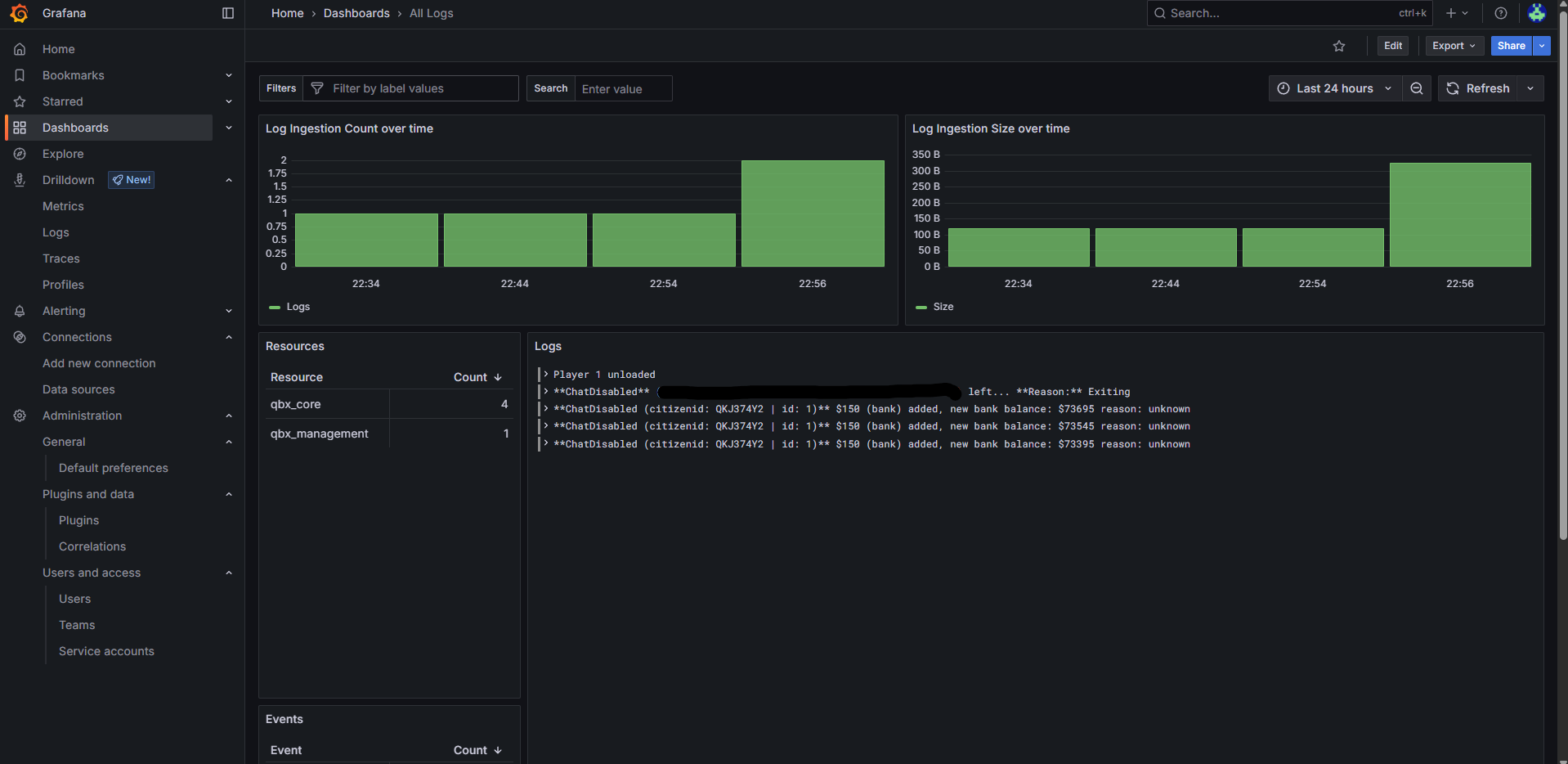
Grafana dashboards are powerful, but easy to start with. There are premade dashboards built for FiveM; this example uses this dashboard, which shows every log coming in from your server.
Copy the full JSON file, open Grafana, go to Dashboards, press New and choose Import.

Paste the JSON, press Load, select the Loki data source that is already set up, and import it. Your first dashboard is ready.

More examples: the GTA V map and the database dashboards. The Grafana dashboard documentation explains everything else.
Other settings on the Logging page
| Setting | Where | What it does |
|---|---|---|
| Retention | Pencil next to Retention on the Managed logging card | How long logs are kept. Choose 24 hours, 7 days, 30 days, 90 days, 180 days (default), or a custom number of hours (up to 365 days). Apply and restart restarts the logging server |
| Custom domains | Domains card | Serve Grafana and Loki on your own hostnames, for example logs.yourserver.com. Add a CNAME record pointing at the Managed hostname; on Cloudflare set it to DNS only (grey cloud). Once active, Grafana moves to the new address and sign-in with Qbox works there |
| Server metrics | Server metrics card (owner only) | Collect FXServer performance data in Grafana. See Server Metrics |
| Start, stop, restart | Managed logging card | Power controls for the logging server |
| Repair | Provision / Reconcile now | Puts the logging server back to its managed settings if something is broken. It can restart the server. Your Grafana dashboards and logs are kept |
Every plan has a fixed amount of disk for logs (see Plans). A busy server with long retention can fill it. The Usage snapshot card shows how much is in use.