Dashboard permissions
When your staff sign in with Qbox, their Grafana role (Viewer, Editor or Admin) applies to every dashboard. To restrict someone to specific dashboards, use Grafana teams and dashboard permissions. This way you can create dedicated log searching teams, or keep certain logs away from certain people.
Staff show up in Grafana's user list after they sign in for the first time. Ask them to sign in once before you add them to a team. Teams are managed in Grafana itself. Whoever loses Logging access in the dashboard can no longer sign in, whatever teams they are in.
ㅤ
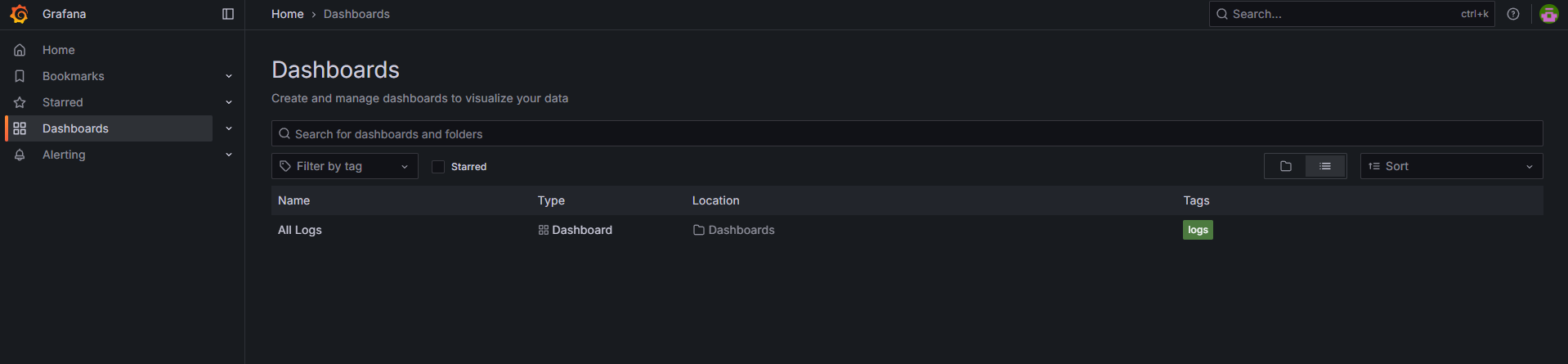
First we'll remove all roles from all dashboards. For this you'll need to open each dashboard manually and click on the Edit button in the top right corner. And then the Settings button.
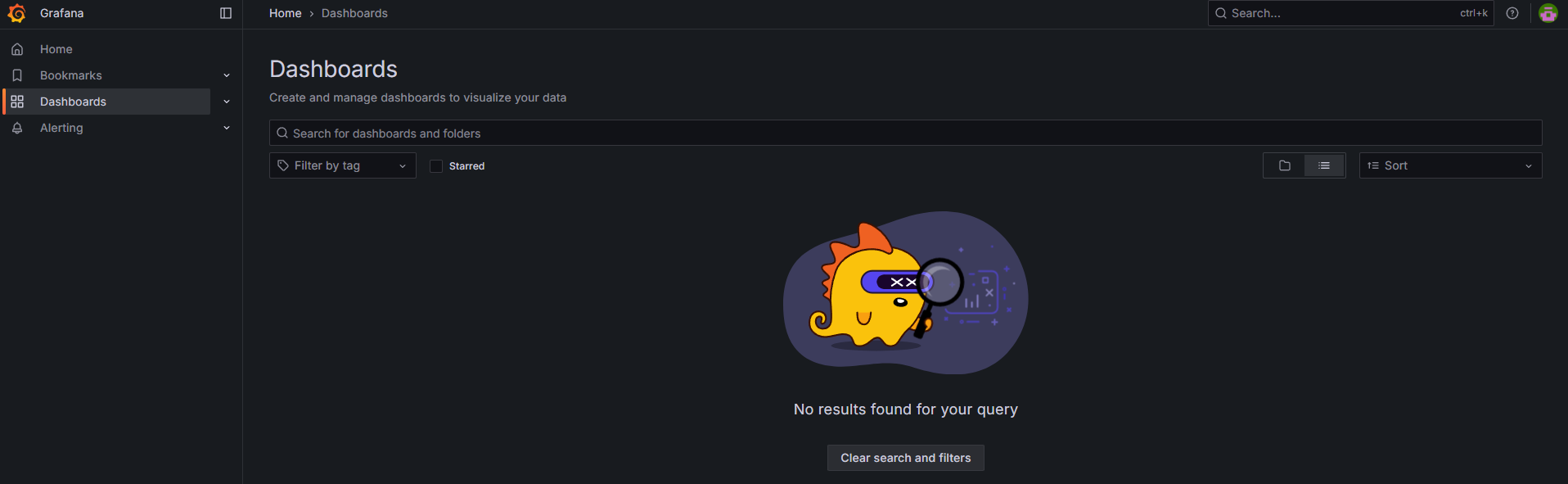
Here you can open the tab called Permissions and remove all roles. This will make sure that no one has access to any dashboard by default.
ㅤ
Next, we can create a team that will have access to the dashboard. To do this, go to Administration > Users and access tab in the left sidebar and click on Teams. Here you can create a new team by clicking on the New team button.
Now just give it a descriptive name and add all the users you want to this team.
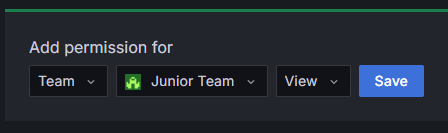
Now go back to the permissions tab of the dashboard and add the team you just created. For this example we will just give this team the Viewer role.
ㅤ
This way you can create multiple teams with different roles and permissions. For example, you can create a team for developers that have access to all dashboards, and a team for moderators that only have access to specific dashboards. This allows you to have complete control over who can see what in your Grafana organization. Just like Discord roles and adding or removing people from channels.